





< Previous | Contents | Manuals Home | Boris FX | Next >
Solver Control Panel
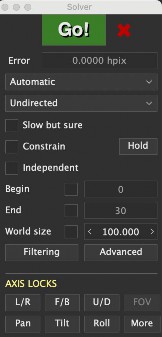
Controls how the camera or moving object is solved; this is the primary panel for the Solver room. The solver panel affects the camera or moving object currently selected (in the viewports), or if nothing or something else is selected, it affects the camera or moving object listed as the Active Tracker Host (on the toolbar).
Tip: You’ll often see additional information below this panel in the Solver room; depending on your monitor size it may appear to be cut off. That’s really the Lens control panel, grouped here for convenience on larger monitors. See the Lens panel documentation for details, and switch to the Lens room to operate it if it is truncated. If having it truncated really bothers you, turn off the Secondary panels preference in the User Interface section, and you won’t see it at all.
Go! Button. Starts the solving process, after tracking is complete.
Master Reset.  Button. Resets all cameras/objects and the trackers on them, though all Disabled camera/objects are left untouched. If shift is on, all world sizes are also restored to the default. Control-click is completely different, clears (only) the current object's seed path, and optionally the seed FOV (after confirmation).
Error. Number display. Root-mean-square error, in horizontal pixels, of all trackers associated with this object or tracker.
Seeding Method. Upper drop-down list controlling the way the solver begins its solving process, chosen from the following methods:
Disabled. List Item. This camera/object is disabled and will not be solved for.
Automatic. List Item. Selects the automatic seeding(initial estimation) process, for a camera that physically moves during the shot.
Refine. List item. Resumes a previous solving cycle, generally after changes in trackers or coordinate systems.
Tripod. List Item. Use when the camera pans, tilts, and zooms, but does not move.
Refine Tripod. List item. Resumes a previous solving cycle, but indicates that the camera was mounted on a tripod.
Indirectly. List Item. Use for camera/objects which will be seeded from links to other camera/objects, for example, an HD shot indirectly seeded from digital camera stills. Use this mode on the camera/object that has links to a (single) other camera/object. That camera/object should use a regular solving mode, such as Automatic or Tripod.
GeoHTrack. List Item. Geometric Hierarchy tracking using meshes and/or hierarchies of moving objects. See separate manual.
Individual mocap. List Item. Use for motion capture. The object’s trackers are solved individually to determine their path, using the same feature on other “Individual” objects; the corresponding trackers are linked in one direction.
Stereo. List Item. Solves a left/right stereo camera pair together, enforcing consistency between the two cameras. Used for stereo shots with shared timing and overlapping trackers.
From Seed Points. List Item. Seed from seed points, set up from the 3-D trackers panel. Use with on-set measurement data, or after Set All on the Coordinate Panel. You should still configure coordinate system constraints with this mode: some hard locks and/or distance constraints.
From Path. List Item. Uses the camera/object’s seed path as a seed, for
example, from a previous solution or a motion-controlled camera.
Directional Hint. Second drop-down list. Gives a hint to speed the initial estimation process, or to help select the correct solution, or to specify camera timing for “Individual” objects. Chosen from the following for Automatic objects:
Undirected (previously Automatic). List Item. With the Undirected setting selected, SynthEyes determines the motion.
Left. List Item. The camera moved generally to its left. Right. List Item. The camera moved generally to its right. Upwards. List Item. The camera moved generally upwards.
Downwards. List Item. The camera moved generally downwards.
Push In. List Item. The camera moved forward (different than zooming in!).
Pull Back. List Item. The camera moved backwards (different than zooming out!).
Slow but sure. Checkbox. When checked, SynthEyes looks especially hard (and longer) for the best initial solution.
Constrain. Checkbox for experts. When on, constraints set up using the coordinate system panel are applied rigorously, modifying the tracker positions. When off, constraints are used to position, size, and orient the solution, without deforming it. See alignment vs constraints.
Hold. Animated Button. Use to create hold regions to handle shots with a mix of normal and tripod-mode sections. Right-click, shift-right, and control-right delete a key, truncate, or delete all keys, respectively.
Independent. Checkbox for experts. When set for a camera, this camera and its objects will be solved independently of other cameras and objects. When set for a moving object, the object will be solved independent of the rest of the scene and its camera too. Importantly, independently-solved objects do not affect the field of view determined from the camera.
Begin. Checkbox and Spinner. Numeric display shows an initial frame used by SynthEyes during automatic estimation. With the checkbox checked, you can override the begin frame solution. Either manually or automatically, the camera should have panned or tilted only about 30 degrees between the begin and end frames, with as many trackers as possible that are simultaneously active on both these two frames. If the camera does something wild between the automatically-selected frames, or if their data is particularly unreliable for some reason, you can manually select the frames instead. The selected frame will be selected as you adjust this, and the number of frames in common shown on the status line.
End. Checkbox and spinner. Numeric display shows a final frame used by SynthEyes during automatic estimation. With the checkbox checked, you can override the end frame solution.
World size. Checkbox and spinner. Rough estimate of the size of the scene, including the trackers and motion of the camera. The world size is used to provide mathematical context when solving the scene, taking into account camera and object paths and relevant coordinate system and locking information. The spinner is underlined in red (key mark) when the world sizes are not all the same. (The world size does not animate). Right-click to reset it, and optionally its children too, to the default 100.0. The world size is used to automatically size objects, clipping distances, etc in the viewports; see the Scene Settings. If those automatic values are inappropriate due to the automatic values, you should adjust the Scene Settings, rather than trying to force the World Size.
Filtering. Launches the Path Filtering control dialog to configure post-solve filtering.
The button is lit up if any filtering (applied on each solve) is present.
Advanced. Button. Brings up the Advanced Solver Settings panel. Lights up if any of the settings are different than the current default values in the Solver section of the preferences.
Axis Locks. 7 Buttons. When enabled, the corresponding axis of the current camera or object is constrained to match the corresponding value from the seed path .
These constraints are enforced either loosely after solving, with Constrain off, or tightly during solving, with Constrain on. See the section on Constraining Camera or Object Position. Animated. Right-click, shift-right, and control-right delete a key, truncate, or delete all keys, respectively.
L/R. Left/right axis (ie X)
F/B. Front/back axis (Y or Z)
U/D. Up/down axis (Z in Z-up or Y in Y-up)
FOV. Camera field of view (available/relevant only for Zoom cameras)
Pan. Pan angle around ground plane
Tilt. Tilt angle up or down from ground plane
Roll. Roll angle from vertical
More. Button (next to Axis Locks). Brings up or takes down the Hard and Soft Lock Controls dialog. Lights up if path, distance, or field of view locks are present on any frame.
©2026 Boris FX, Inc. — UNOFFICIAL — Converted from original PDF.
